
Recommended Display Settings
For the best Visual Planner experience:
| Setting | Recommendation |
|---|---|
| Resolution | Use the display's native resolution |
| Scaling | 100% for 1920 × 1080 displays |
| Scaling | 200% for 4K/Ultra HD displays (3840 × 2160 or similar) |
| Multiple Displays | All displays must use the same resolution and scaling settings |
Visual Planner is designed to maximize visible swim lanes and dates while maintaining usability across touch-enabled displays. Increasing scaling beyond recommended settings may reduce available workspace and impact usability
Why Display Scaling Matters
Windows scaling affects:
- Size of tags
- Number of visible swim lanes
- Number of visible dates
- Size of menus and interface controls
- Touchscreen usability
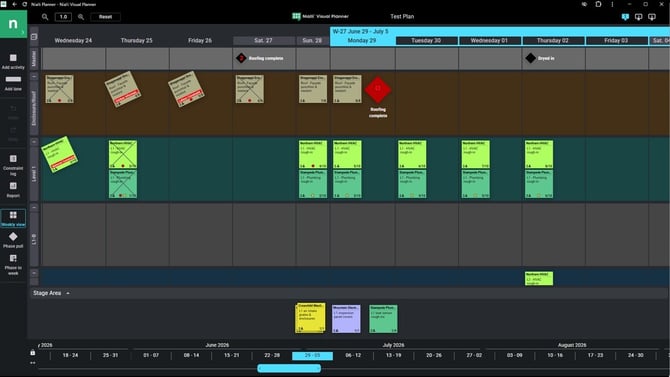
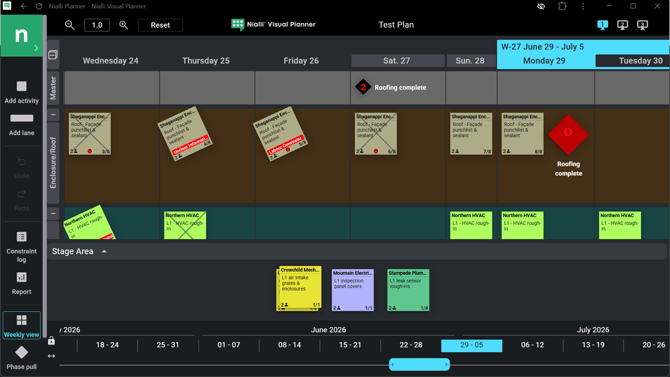
Example: 1920 x 1080 Display
Recommended: 100% Scaling (See below)
Less Optimal: 200% Scaling (See below)
Using 4K and High-Resolution Displays
High-resolution displays require different scaling settings.
Recommended Configuration
- Native resolution enabled
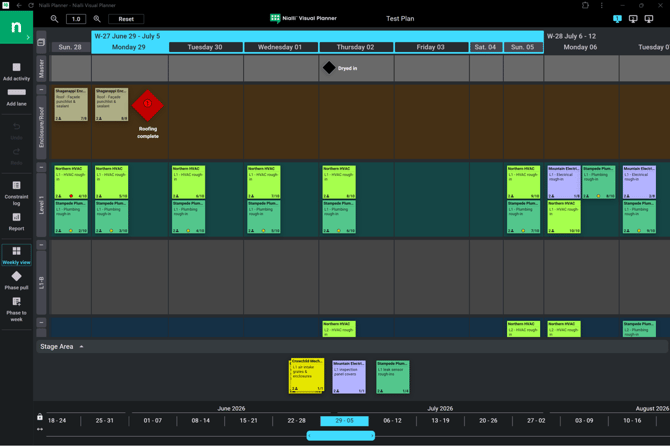
- 200% Windows scaling
This combination provides:
- Readable cards
- Touch-friendly controls
- Consistent Visual Planner experience
Example: 3240 x 2160 at 200% (see below)
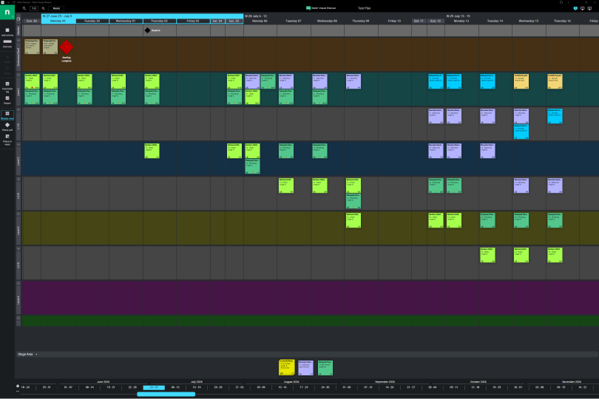
Using 4K displays at 100% scaling may result in:
- Very small cards
- Interface elements that are difficult to touch
- Reduced usability on interactive displays
Example: 3240 x 2160 at 100% (see below)
Operating on a Laptop: Impact of resolution and scale settings
High scaling percentages can significantly reduce available workspace on smaller screens.
Impact of Increased Scaling - Screen Resolution: 1920 x 1080
| Scaling | Result |
|---|---|
| 100% | Maximum workspace |
| 125% | Fewer lanes visible |
| 175% | Significantly reduced workspace |
Possible issues include:
- Only one lane visible
- Larger interface elements
- Hidden menu options
- Dialog boxes partially off-screen
- Reduced access to controls
For best results, use a lower scaling percentage whenever possible.
To Check Display Settings
- Open Windows Settings
- Select System
- Select Display
- See Scale & Layout
- Review each display (Scale)
- Edit your scale percentage to desired format
- Ensure all displays use matching resolution and scaling settings