
Easily expand your view across multiple monitors
Nialli™ Companion for Chrome is an extension for Nialli Visual Planner that extends your browser window across two or three displays — ideal for planning sessions when you’re using multiple large-format touchscreens.
The extension also enables the zoom functionality in Visual Planner so it must be installed to use this functionality.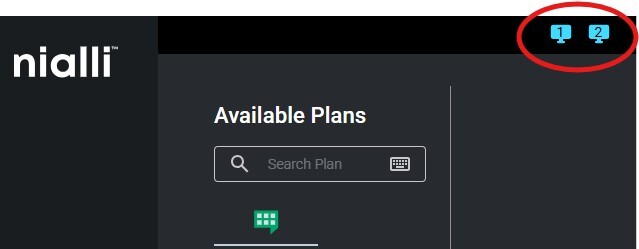
Allow multi-display permissions
Follow these steps (also shown in the video below) to install the Chrome™ browser extension:
- Click the Chrome extension button in the top-right corner of the opened plan.
- You will be redirected to the Nialli Companion web page.
- Click the Add to Chrome button.
Note: The zoom functionality in Nialli Visual Planner will only work if the Nialli Companion for Chrome extension is installed.
Note: To ensure the Nialli Companion for Chrome works as intended, make sure all displays are set to the same resolution and zoom or scale settings. Mismatched display configurations may cause unpredictable window behavior, improper stretching or interface misalignment.
Choose your display layout
Once permission is granted, you’ll see icons representing the number of available displays (1, 2 or 3). Simply click:
- 2-display icon — to expand across two screens.
- 3-display icon — to expand across three screens.
The browser will automatically resize and position the window across your chosen setup for seamless viewing and interaction.
Configuring Multiple Displays (Scaling & Resolution)
When using Visual Planner across two or three interactive displays:
All displays must use:
- The same resolution
- The same scaling percentage
If display settings do not match:
- Touch events may not align correctly
- Multi-screen functionality may behave unexpectedly
To Check Display Settings
- Open Windows Settings
- Select System
- Select Display
- Review each display
- Ensure all displays use matching resolution and scaling settings
Running Visual Planner Full Screen Across Multiple Displays
To maximize workspace:
- Open your plan in Chrome.
- Select Open in App. (Do not use F11 Full Screen mode)
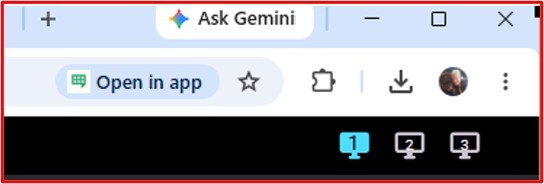
- Use the Nialli Chrome Extension to select which screens participate in the multi-screen session.
This removes browser interface elements while maintaining proper multi-display support.
How to Reconfigure Touchscreen Mapping in Windows Settings
Issues you may be experiencing
- Touch inputs occur on the wrong screen
- Touch does not work on one display
- Touch location is inaccurate
Resolution:
- Open Computer Settings - Control Panel
- Select Hardware and Sound
- Select Tablet PC Settings
- Choose Setup
- Select Touch Input
- Enter administrator credentials if required
- Follow the prompts to identify each display
Note: After setup is complete, test touch functionality on all connected screens.
Resolving Display Synchronization Issues on Multiple Screens
Issues you may be experiencing
- Screens stop synchronizing
- Touch stops working on secondary displays
- Performance issues on high-resolution displays
Cause
-
Multiple high-resolution displays may exceed available graphics memory on the workstation.
Resolution
Step 1: Update Graphics Drivers
Ensure the latest graphics drivers up to date and are installed.
Step 2: Disable Chrome Hardware Acceleration
- Open Chrome.
- Select the three-dot menu (top right of window)
- Select Settings.
- Select System.
- Turn off Use hardware acceleration when available (or Use graphics acceleration when available)
- Select Relaunch.
Step 3: Upgrade Graphics Hardware
If issues continue, consider upgrading the graphics card to one with additional memory and display-processing capability.