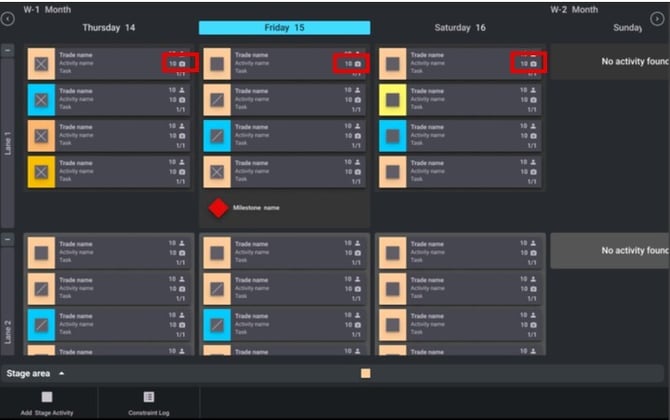
Visual Planner allows users to capture photos directly from mobile devices/tablets and attach them to activity tags. Photos can be used to document the current state of work, highlight the physical location of a task within a plan, provide visual evidence for reporting or audits, or add context when a task is delayed or marked as Not Done.
Who can use this feature
- Any user except for those on view only permission.
View only users can view existing photos but cannot add or update them. Edit my trade users can only add photos to tags belonging to their trade. Learn more about permission levels
Supported devices
Photos can only be captured using tablets and mobile devices with a built-in camera. When capturing a photo for the first time, there may be a prompt to allow camera access.
How to add a photo to an activity tag
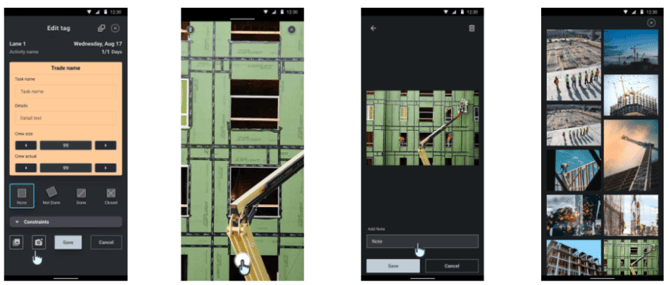
- Open Visual Planner in a supported mobile browser.
- Navigate to the plan and ensure you are on Daily view
- Locate and tap the tag you want to add a photo to.
- The Edit tag menu will open. Tap on the camera icon.
- Choose Use camera when prompted.
- The camera will open. Take a photo.
- (Optional) Add a note in the text field provided.
- Select Save to attach the photo to the tag gallery or Cancel to return to the edit tag dialog.
Viewing attached photo
Once saved, the photo is associated with the tag in the plan and becomes visible to all users with access to the plan. Photos can be viewed across all supported device types.
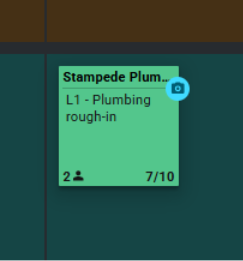
A camera icon will appear on the tag showing that there are photos associated with the activity tag.
A maximum of 10 photos can be attached to a tag.
To view, open the Edit tag menu and select the photo gallery via the icon. Select a photo to view it, add notes or delete it.
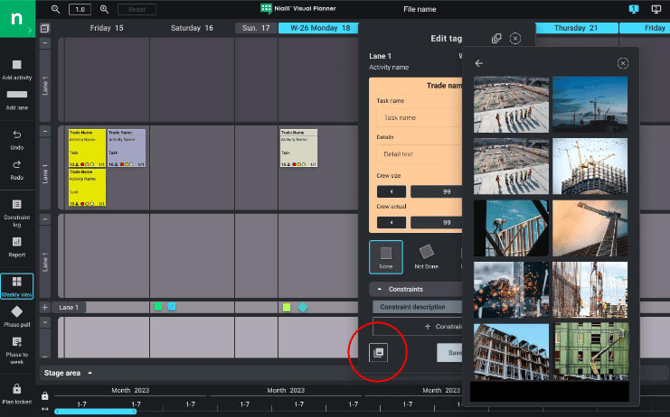
Photo indicators in Mobile and Tablet Views
When an activity contains one or more photo attachments, a photo indicator and number of attached photos are displayed on the activity tag in Mobile and Tablet views.
For example, if an activity contains ten photos, the tag displays a count of 10 along with the camera icon. If an activity does not contain any photos, the photo indicator is not displayed.
Photo indicator – Mobile
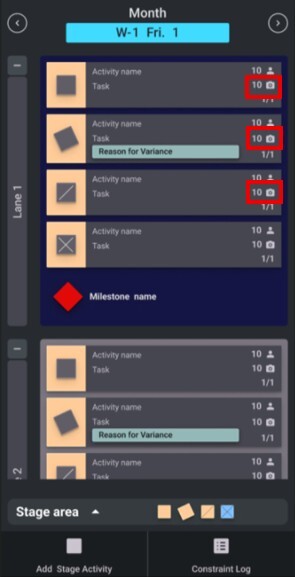
Photo indicator - Tablet