
How do I add new users to a plan?
Can users be removed from a plan?
How many users can be active in a plan at once?
How do multiple users work on the same plan?
Can I bulk import users into Nialli Visual Planner?
Is single sign-on (SSO) authentication supported?
How do I configure single sign-on (SSO)?
What's the difference between levels of access in Nialli Visual Planner?
How can I manage access across multiple projects?
How do I add new users to a plan?
To add a new user to Nialli Visual Planner, go to the Settings menu and click the Users sub menu. You can add a single user by clicking + Users. To import a list of users from an excel file, click Import From File.
View step-by-step instructions →
Note: Only plan administrators and subscription administrators can add and edit plan users. Learn more about user permissions →
Can users be removed from a plan?
Yes, users can be removed from a plan. To remove a user, follow the instruction below.
1. Click on the “n” on the top left of your screen and choose “Users”.
2. Find the user you need to delete in the list.
3. Click the Trash icon next to the user’s email address.
4. A confirmation dialog will appear, displaying:
- The number of tags and milestones associated with the user.
- A warning: “Deleting this user will affect report history accuracy.”
5. Confirm the deletion to proceed or cancel to retain the user.
Caution: Deleting a user is irreversible and will impact historical data and reports. Ensure you have reviewed the implications before proceeding.
Note: Only plan administrators and subscription administrators can add and edit plan users. Learn more about user permissions →
How many users can be active in a plan at once?
There is no limit to how many users you can add to each plan.
How do multiple users work on the same plan?
Nialli Visual Planner is a web-based software that allows for real-time collaboration. Your plan stays synced in real time, so multiple users can work together live from any device or location. There are no limits to how many users you can have in your plan. Users can access from desktop (Mac or PC), tablet, phone or interactive display.
Can I bulk import users into Nialli Visual Planner?
Yes, you can bulk import users into Nialli Visual Planner to speed up your configuration. Follow the steps below to bulk import users into your plan.
Note: Only users with plan administrator or subscription administrator permission levels can add new users to a plan. Learn more about permission levels →
Import users from a file
1. In the Users tab, click Import from file.
2. Browse to your Excel® or CSV file. Make sure it includes the header Email address as per the template below.
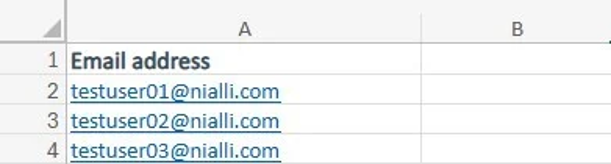
Download the official Excel template to ensure the format matches system requirements. Data must be entered as shown or the import will not function.
Learn more about adding users →
Is single sign-on (SSO) authentication supported?
Yes, single sign-on authentication is supported. Nialli supports single sign-on authentication through SAML and OpenID Connect protocols, with providers like Okta, Azure AD, and Google Workspace™. Contact Nialli support for more information.
How do I configure single sign-on (SSO)?
Nialli Visual Planner supports single sign-on and multi-factor authentication through SAML and OpenID Connect protocols. This configuration will require technical management by your organization's IT team. They will need to submit their SSO credentials and URLs to our support team at support@nialli.com.
Instructions to provide your IT team for SSO configuration →
Note: Depending on your subscription level, your organization may incur a setup and management fee for SSO & MFA access. Our team will advise if any charges will occur prior to implementation.
What's the difference between levels of access in Nialli Visual Planner?
Nialli Visual Planner has the following access permissions for users:
Subscription administrator - highest level of access. This allows users to oversee all plans within a subscription and access the Nialli Administration Portal. Subscription administrators can create new plans within a subscription and have full edit permissions across all plans within their subscription. Typical users: IT administrators, Department leads
Plan administrator - Plan administrators have full access control and management permissions within an assigned plan. They can assign user permissions, add trades, set lanes and configure reasons for variance. Typical users: Superintendents, Project Managers, Field engineers
Edit all - These users can modify any activities or tag, regardless of assigned trade. However, they do not have access to plan configuration or user management settings. Typical users: Assistant superintendents, project coordinators, senior trades
Edit my trade - These users can only modify activities or tags that belong to the trade(s) they have been assigned. Typical users: Subcontractors, trade supervisors
View only - These users have read only access to plans. They can monitor progress but cannot changes to the schedule. Typical users: Owners, consultants, external stakeholders
Learn more about user roles and permissions →
How can I manage access across multiple projects?
Subscription administrators are responsible for configuring access across subscriptions. When setting up a new project, the subscription administrator can add plan administrators by clicking the green "n" button, navigating to the "Users tab" and clicking "+ User".
If additional subscription administrators need to be added to your subscription, this can be done in the Nialli Administration Portal.
The Nialli Administration Portal also provides view-only access to all assigned Plan administrators across your subscription if you need to determine which plan(s) an administrator is active in.