
When planning in the phase pull view, you may want to see how your activities align with calendar dates. By default, the phase pull focuses on task sequencing without regard for specific dates — but you can easily switch the toggle on or off for date visibility as required.
How to show or hide timeline dates
To switch the date visibility on or off:
- In the top menu of the phase pull view, click the View dates button. This will display or hide the month and year labels across the top of the timeline.
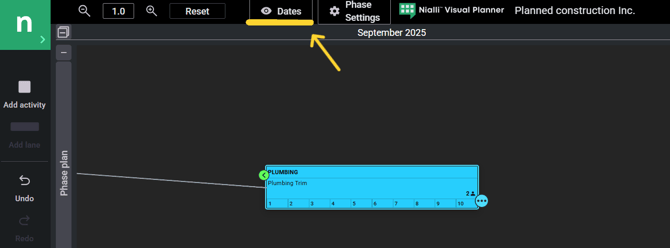
Note: This toggle only affects your current view. It won’t change the view for other users or saved plans.
When to show dates
Showing dates can help you:
- Coordinate with your master schedule.
- Spot high-level alignment (or gaps) between activities and key deadlines.
- Communicate future timing more clearly with stakeholders or field teams.
You can turn dates on while reviewing milestones, refining handoffs or exporting visuals — and then hide them again for a cleaner working view.
View Activity Start Dates
When “View Dates” is enabled, activity start dates are displayed on each activity tag and is updated dynamically when the activity is moved. The start date stays hidden when “View Dates” is disabled.
Note: Activity dates are not displayed on activities in the Master Activity Lane, regardless of the View “Dates" setting.
Show non-working days
Phase Pull can display non-working days within activity durations. Non-working days include:
- Days not selected as working days in Plan Settings.
- Holidays
When non-working days are displayed, they are inserted into the activity timeline beginning from the activity start date. The activity start date itself does not change.
Show non-working days setting
The Show non-working days toggle is available from the Phase Pull Settings dialog.
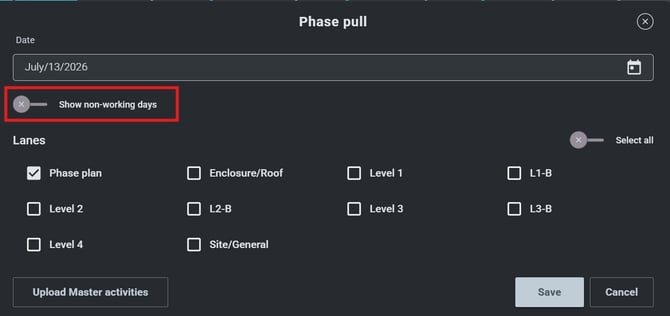
Note: The toggle is available to users with Plan admin or Edit all users permission levels.
When the toggle is disabled
When Show non-working days is turned off:
- Activities are displayed without non-working days.
- Adding, editing, copying, moving, or dragging activities does not display non-working days.
- Non-working day and holiday highlighting is not shown.
.png?width=670&height=397&name=image%20(7).png)
When the toggle is enabled
When Show non-working days is turned on and saved:
- Existing and new activities display non-working days.
- Non-working days are calculated using the plan's working day settings and holidays.
- Adding, editing, copying, moving, or dragging activities displays non-working days.
- Activities in the Master Activity lane do not display non-working days.
.png?width=670&height=363&name=image%20(8).png)
Notes
- The day count shown in the Add Activity dialog always represents working days only. Non-working days are not included in the duration count.
- If working days or holidays are updated in Plan Settings, existing and future Phase Pull activities are automatically updated to reflect the revised non-working day configuration.
- The Show non-working days setting applies only to Phase Pull and does not affect the Master Activity lane.