
How do I manage constraints in Nialli Visual Planner?
Can I lock my plan or control user access?
Can Nialli Visual Planner calculate longest path?
How do I bring activities from the phase plan to the weekly plan?
How can I move multiple activities at once?
How do I create dependencies in Nialli Visual Planner?
How can I show when work has been completed or not?
How do I get milestones to show at the top of my plan?
What's the difference between trades and users?
How do I add holidays?
You can add a holiday in the weekly plan mode of Nialli Visual Planner by right clicking the date in the weekly view or holding one finger down on a touchscreen.
What is the staging area?
The Stage Area is a dedicated space where teams can store activity tags before placing them on the schedule. It’s especially useful during pull planning sessions, allowing trades to prepare their tags in advance - so no time is wasted creating them during the meeting.
What is the constraint log?
Constraints represent issues, conditions or dependencies that must be resolved before an activity or work can proceed. These may include required inspections, materials availability, approvals or coordination between trades. You can tie constraints to specific activities or add general constraints to your constraint log. Each constraint contains critical details including who's responsible for it and when it must be resolved.
When a constraint is added to an activity, it will display a yellow indicator dot. This makes it easy for teams to see which activities are constrained. When the constraint is resolved, the dot disappears.
Constraints are a great method to help teams proactively monitor for potential upcoming problems and resolve issues before work gets disrupted.
How do I manage constraints in Nialli Visual Planner?
There are several ways to add and manage constraints in Nialli Visual Planner:
-
Phase plan module activities
In the phase plan module, you can add a constraint to an activity by clicking Edit Activity, then navigating to the Constraints section in the menu. Click + Constraint to add a constraint to the activity. You constraint will be added to the activity and recorded in the central constraint log. A constrained activity will show a yellow dot on it to let you know it's constrained. If you need to edit a constraint you've added, hit the pencil icon. You can also mark a constraint as resolved, which will move it to the Resolved column in your constraint log. This also removes the yellow dot.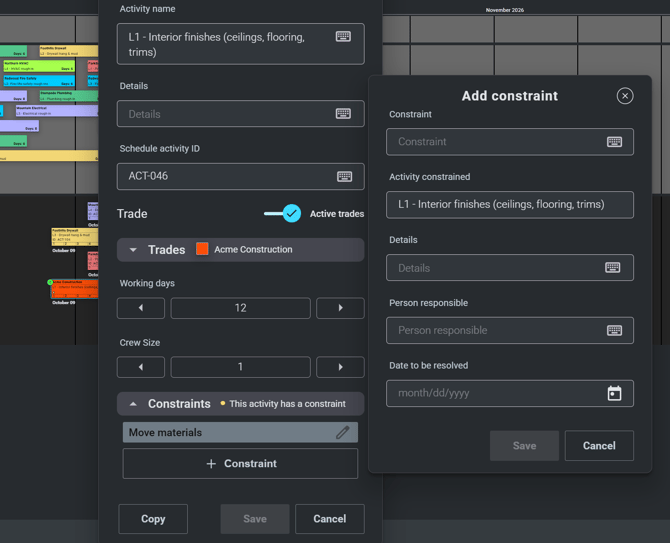
- Weekly plan module activities
In the weekly planning module, you can add a constraint by opening an activity or task and clicking Log Constraint. Your constraint will be logged to all connected tags in the activity sequence, after the current date. You can visually identify which activities are constrained - they will have yellow dots on their tags. To edit or mark a constraint as resolved, click the pencil icon. This will remove the yellow dot from the tag(s) and automatically move the constraint to Resolved in the constraint log.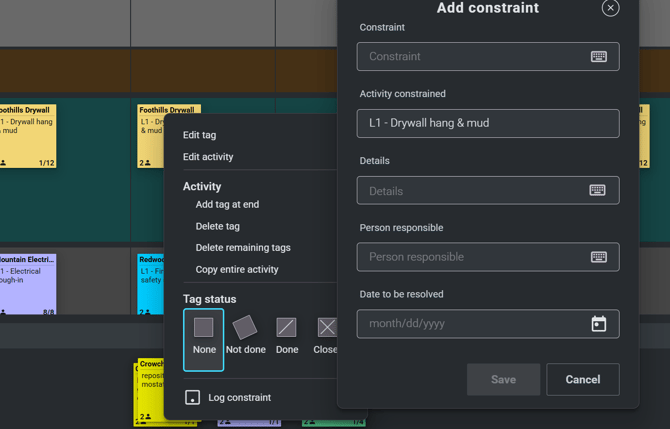
- Constraint log
If you have a constraint that is impacting multiple tasks or the project in general, it may make more sense to add the constraint directly to the constraint log rather than tying it to a specific activity. This can be done by opening the constraint log and clicking + Constraint in the top corner.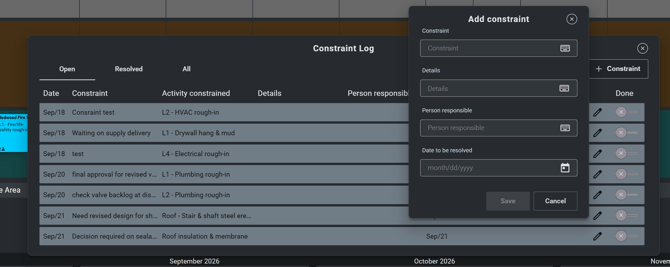
Can I lock my plan or control user access?
Yes, you can lock your plan to control editing access and maintain plan integrity. Locking a plan ensures that no changes can be made in Nialli™ Visual Planner without the team’s knowledge and agreement. This feature is particularly useful between weekly planning sessions to prevent unauthorized modifications.
Can Nialli Visual Planner calculate longest path?
Yes, Nialli Visual Planner can calculate the longest path for a milestone in the phase pull plan. To view the longest path:
- Ensure all necessary dependencies between activities and the milestone have been created.
- Right-click (or press and hold on a touchscreen) on the milestone.
- In the contextual menu, select Show longest path.
The Longest path dialog will appear.
How do I bring activities from the phase plan to the weekly plan?
In Nialli Visual Planner, activities can be brought from the phase plan into the weekly plan using the phase to week view from the main menu. Drag and drop an activity from the phase plan directly into the desired land and date on the weekly plan, adjust details trade, duration or crew size if needed, and click Save.
How can I move multiple activities at once?
In Nialli Visual Planner, you can select and move multiple tags or activities simultaneously using batch actions:
- Move multiple tags: Hold Shift (or press and hold a tag with two fingers on a touchscreen) and drag the selected tags to the new date.
- Shift tags by date (batch shift): Right-click a cell date (or press and hold on a touchscreen) and select Shift tags. Choose the number of days to shift forward or backward. If you click 'Apply to all lanes' all lanes on the board will shift. Otherwise, just the lane you are working in will be shifted. Click Save to apply.
How do I create dependencies in Nialli Visual Planner?
To create a dependency in Nialli Visual Planner, click or tap on an activity tag and drag the arrow to the task this activity depends on. Nialli Visual Planner automatically tracks the link, displaying red indicators if a predecessor delay puts downstream activities or milestones at risk. To remove a dependency, select the tag and the trash can icon to remove.
How can I show when work has been completed or not?
In Nialli Visual Planner, you can mark work as completed or incomplete by statusing an activity tag using touchscreen gestures or a mouse:
- Mark work as done ✅
- Touch: Twist the tag to the right using two fingers. A diagonal line will appear across the tag to confirm completion. A final approval can be done by a superintendent using the same gesture.
- Mouse: Double-click or right click the tag to open the status menu. Select the Done option. A final approval can be done by a superintendent using the same action.
- Mark work as not done 🚫
- Touch: Twist the tag to the left using two fingers. The tag will tilt left and open the reason for variance menu.
- Mouse: Double-click or right click the tag to open the status menu, select the Not done, and choose a reason for variance from the drop-down menu list to record why the work was delayed.
How do I get milestones to show at the top of my plan?
To show milestones at the top of a plan in Nialli Visual Planner, import them as master milestones. Simply export your schedule data Microsoft Project, Oracle P6, or Asta Powerproject, then go to Settings > Plan and select Import master milestones. A dedicated master milestones lane will be pinned at the top of the weekly view and phase pull.
What's the difference between trades and users?
In Nialli Visual Planner, trades and users serve two distinct roles on a project plan:
- Trades: Represent the crews or disciplines responsible for completing work. Each trade has a distinct background colour and contact details to organize and coordinate activities.
- Users: Represent individual team members with login accounts. Users are assigned to one or more trades and given specific permission levels, from View only to Plan admin, to control what they can see and edit in the plan.